Motion blur
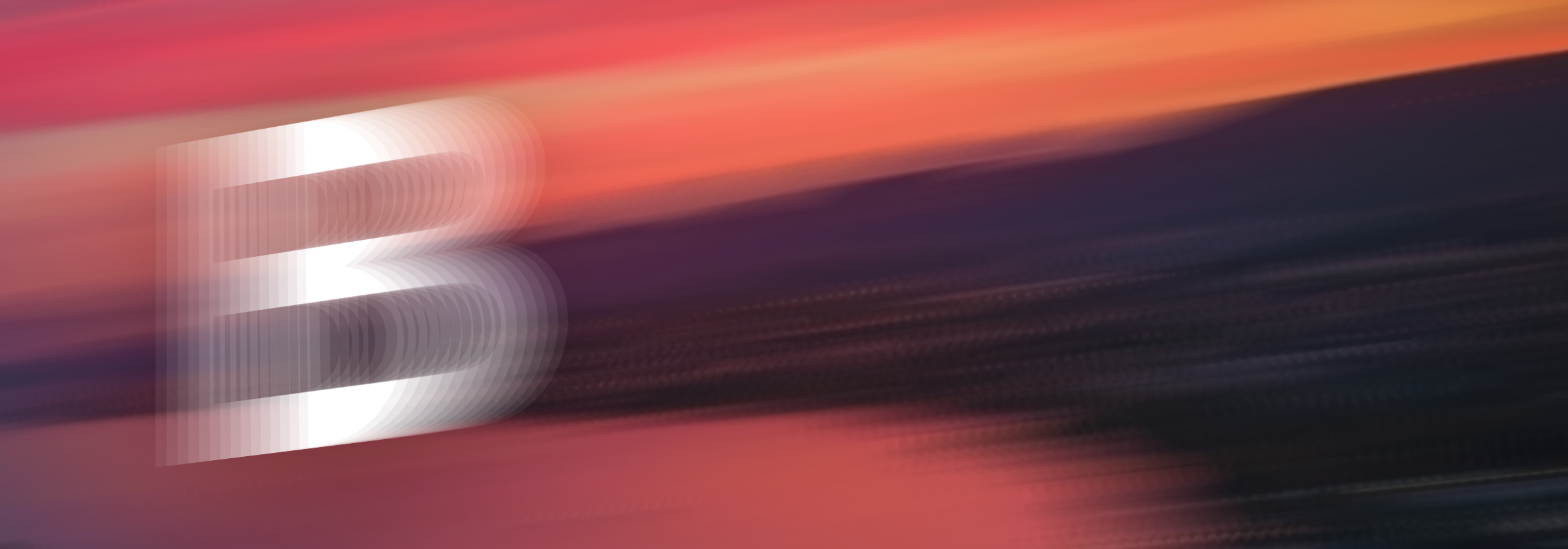
Motion blur is an essential, albeit expensive effect used in video editing and motion graphics.
It samples frames from before and after the current time and blends them together.
Remotion supports motion blur on arbitrary content through @remotion/motion-blur.
For transitions there is an optimized way available in @remotion/transitions.
Using an agent
The /remotion-markup skills can help you find the right motion blur for your animation.
Reference an element and ask:
/remotion-markup Add motion blur to thisIn Studio
Select an element in the Remotion Studio timeline, then click Motion blur.
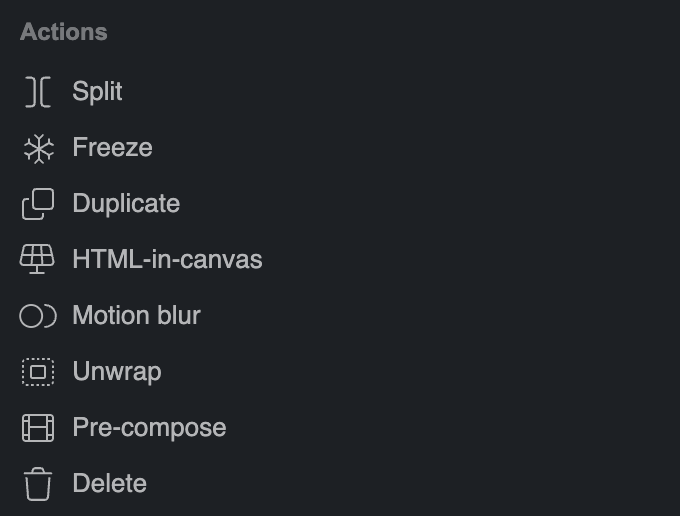
Studio will wrap the element in <HtmlInCanvasMotionBlur>.
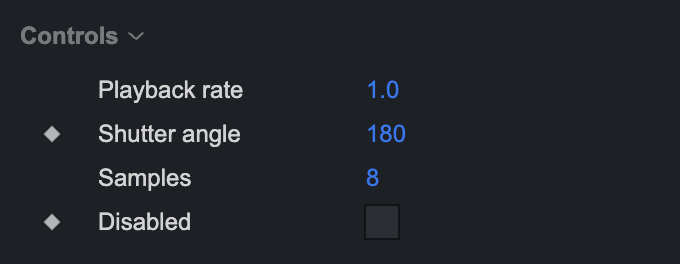
Select the newly created element and adjust shutter angle and amount of samples in the sidebar.
Programmatically
<HtmlInCanvasMotionBlur>
<HtmlInCanvasMotionBlur> is Remotion's state-of-the-art implementation of motion blur.
Wrap any content with it to apply motion blur. You must pass a width and height.
MyComposition.tsximport {HtmlInCanvasMotionBlur } from '@remotion/motion-blur'; import {useCurrentFrame ,useVideoConfig } from 'remotion'; constMovingBox = () => { constframe =useCurrentFrame (); return ( <div style ={{position : 'absolute',left :frame * 10,top : 300,width : 120,height : 120,backgroundColor : '#ff6b6b', }} /> ); }; export constMyComposition = () => { const {width ,height } =useVideoConfig (); return ( <HtmlInCanvasMotionBlur width ={width }height ={height }samples ={8}shutterAngle ={180} > <MovingBox /> </HtmlInCanvasMotionBlur > ); };
Call useCurrentFrame() from a child component so each motion blur sample receives its own frame.
Motion blur on transitionsv4.0.545
Use motionBlur on a <TransitionSeries.Transition> to blur the presentations movement.
MyComposition.tsximport {springTiming ,TransitionSeries } from '@remotion/transitions'; import {slide } from '@remotion/transitions/slide'; import {AbsoluteFill } from 'remotion'; export constMyComposition = () => { return ( <TransitionSeries > <TransitionSeries .Sequence durationInFrames ={60}> <AbsoluteFill style ={{backgroundColor : '#0b84f3'}} /> </TransitionSeries .Sequence > <TransitionSeries .Transition presentation ={slide ({direction : 'from-bottom'})}timing ={springTiming ({durationInFrames : 20})}motionBlur ={{shutterAngle : 180,samples : 16}} /> <TransitionSeries .Sequence durationInFrames ={60}> <AbsoluteFill style ={{backgroundColor : '#2ecc71'}} /> </TransitionSeries .Sequence > </TransitionSeries > ); };
All built-in presentations support motion blur.
Custom presentations must be implemented using HTML-in-canvas in order to support motion blur.
The properties enterStyle, exitStyle, innerEnterStyle, innerExitStyle, outerEnterStyle, and outerExitStyle cannot be used when applying motion blur to an element.
shutterAngle and samples
shutterAngle is the exposure duration as a fraction of one frame.
360° equals 1 frame, 180° is half a frame, 90° is a quarter of a frame, and so on.
The equivalent exposure time in seconds is (shutterAngle / 360) / fps.
For example, at 30fps, a shutterAngle of 180 is (180 / 360) / fps = 1 / 60 sec.
Use samples to control how many snapshots are blended within the exposure time.
Increasing it leads to a smoother blur, but increases rendering work.
Browser support
In regular rendering and server-side rendering, motion blur is supported.
Preview requires HTML-in-canvas, currently only supported in Chrome.
As a fallback the original content and a “Motion blur is not visible” indication is shown.
In client-side rendering, HTML-in-canvas must be enabled, otherwise a render fails if it includes motion blur.
<CameraMotionBlur> and <Trail>
There are 2 more ways motion blur can be achieved in Remotion, but they are not recommended anymore:
<CameraMotionBlur>works in browsers that don't have HTML-in-canvas enabled, but colors and opacity can be inaccurate.<Trail>repeats earlier positions behind the current one, it does not blend frames.